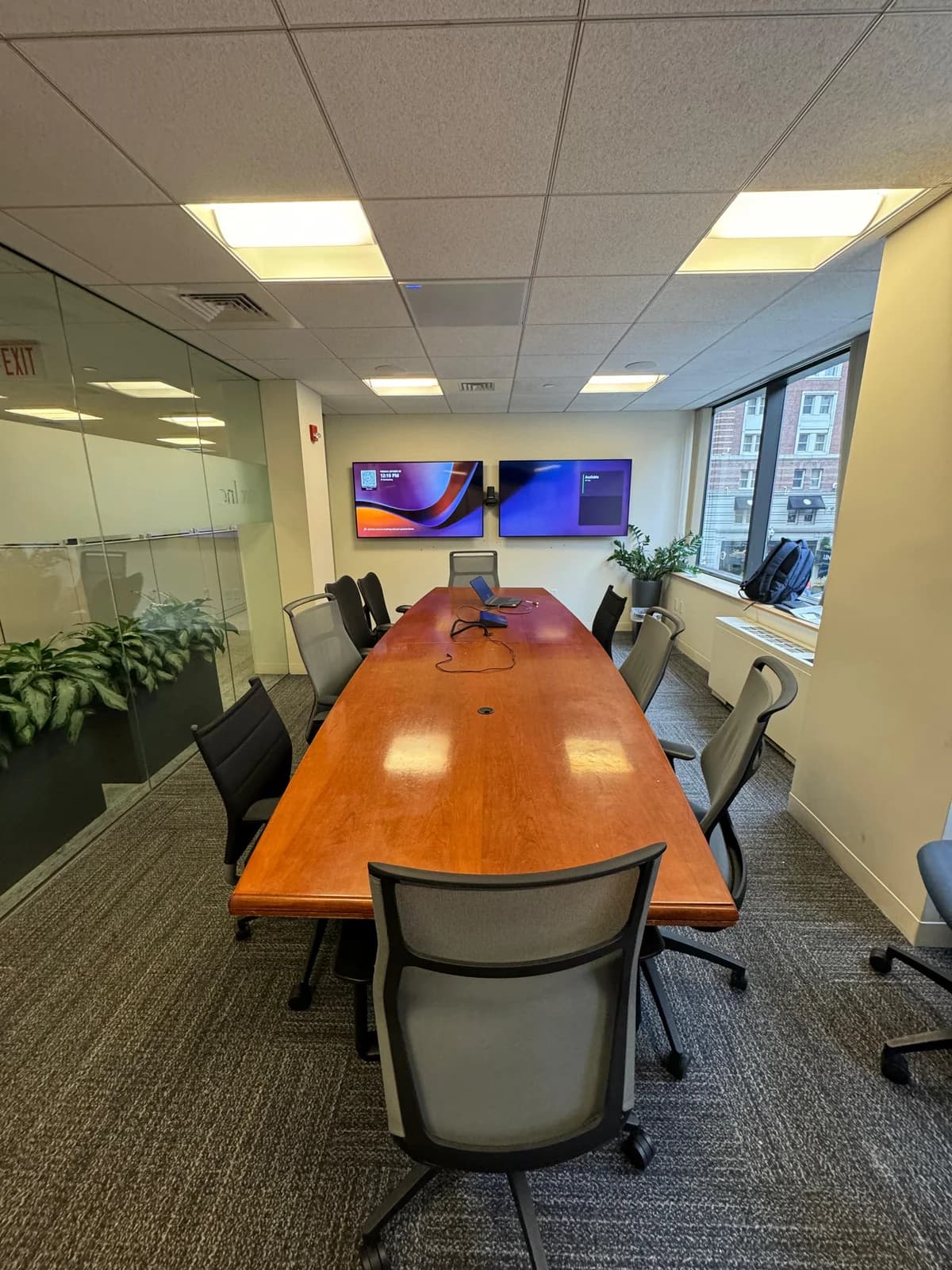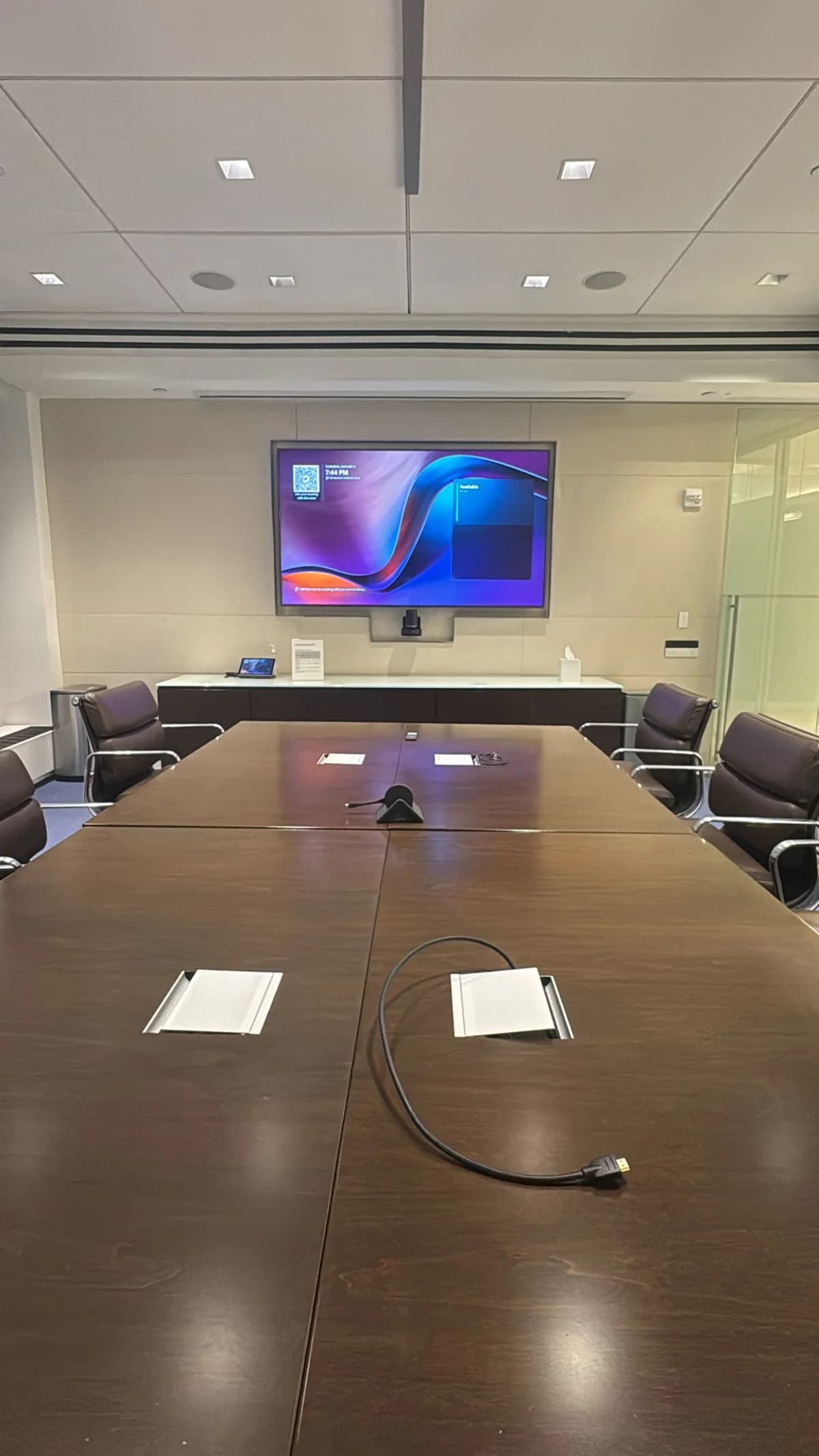
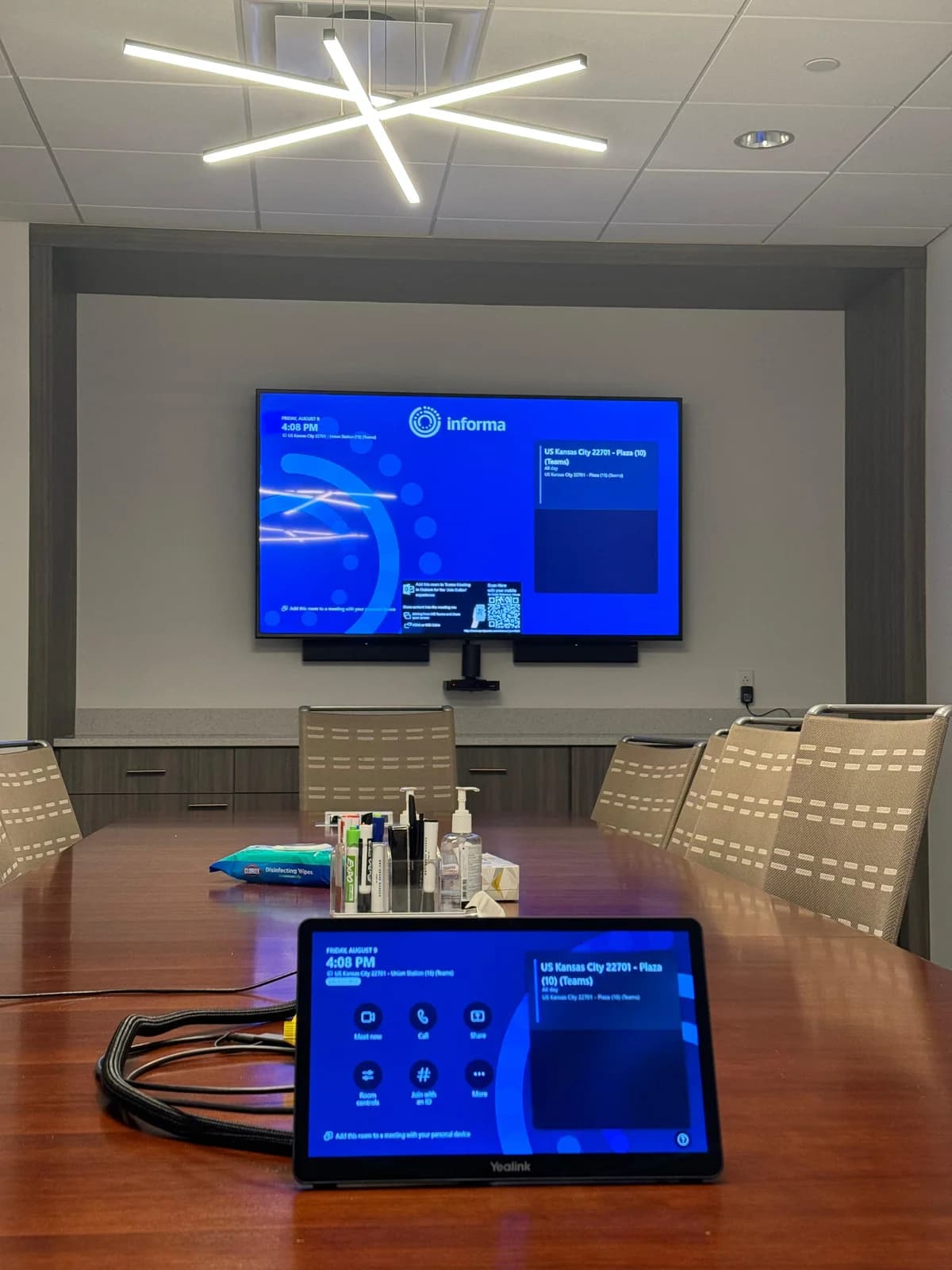
Yes, you can run Zoom, Teams, or Google Meet on a TV — and it's dramatically better than a laptop. You need four things: a TV, a dedicated conference camera, audio (a soundbar or speakerphone), and a computer or device to run the meeting app.
Who's this for? NYC office managers and small business owners who want to upgrade from laptop video calls to a proper wall-mounted setup in a conference room or office.
This guide covers the hardware you need, three ways to connect, and how to get one-tap meeting joins.
The short answer
- TV: any modern TV with an HDMI input works. 55–65 inches is the sweet spot for most rooms.
- Camera: a dedicated conference camera (not the TV's built-in webcam). All-in-one video bars handle camera, mic, and speaker in one device for most rooms.
- Audio: the video bar's built-in audio is often enough. Add a soundbar or speakerphone for larger rooms.
- Computer: a laptop via HDMI, a mini PC mounted behind the TV, or a dedicated video conferencing device.
- HDMI is the most reliable connection method. Wireless is convenient but adds a point of failure.
- Want a professional setup installed? Book online and we'll design and install the whole thing.
If you've ever spent an hour-long video call hunched over a laptop, squinting at a 13-inch screen while your webcam captures your forehead and ceiling fan, you already know why people switch to a TV. A 65-inch display with a dedicated camera and soundbar turns video calls from something you tolerate into something that actually works.
This guide covers how to video conference on a TV — the hardware, the connection methods, and the setup that gets you one-click meeting joins. Whether it's a small NYC office, a home office in a Brooklyn brownstone, or a midtown conference room, the approach is the same.
Why a TV Destroys a Laptop for Video Calls
The difference isn't subtle. Here's what changes when you move video conferencing to a TV.
Screen size. A 55- to 75-inch screen means you can see everyone's face at actual face size. Gallery view with 12 people on a laptop shows postage stamps. The same view on a 65-inch TV shows recognizable human beings.
Camera quality. Laptop webcams are crammed into a tiny sensor. A dedicated conference camera has a wider field of view, better low-light performance, and often includes auto-framing that keeps you centered.
Audio. Laptop speakers and microphones are designed for one person sitting 18 inches away. A soundbar or speakerphone fills a room. Everyone hears clearly, and the far side can actually understand what you're saying.
Ergonomics. Looking straight ahead at a wall-mounted TV is how your neck is supposed to work. Looking down at a laptop for an hour is not.
What Hardware You Need
The setup has four parts. You may already have some of them.
The TV
Any modern TV with an HDMI input works. For video conferencing, 55 to 65 inches is the sweet spot for most rooms. Bigger is fine if the room supports it. Smart TV apps (Zoom for Home, Microsoft Teams Rooms) exist but are limited — a dedicated computer or device connected via HDMI gives you a much better experience.
The Camera
This is the piece that matters most. Your options, from simple to professional:
USB webcam on a mount — clips to the top of the TV. Budget-friendly, good enough for 1–2 people. Around $70–130.
All-in-one video bar — purpose-built for conference rooms. Wide field of view (120 degrees or more), auto-framing that follows the active speaker, built-in microphone array and speaker. $500–1,500 depending on room size. This is the right choice for most NYC offices. See our video conferencing systems buyer's guide for a brand-by-brand breakdown.
PTZ camera (pan-tilt-zoom) — for large conference rooms. Controlled by remote or software, can zoom in on whoever is speaking. $1,000–3,000. Overkill for most small offices but necessary for boardrooms.
For specific product picks, see our equipment recommendations or use the find-your-setup tool.
The Audio
If your conference camera doesn't have built-in speakers — or they're not loud enough for the room — add a soundbar. A wall-mounted soundbar below the TV keeps the setup clean. Any soundbar connected via HDMI ARC, optical, or Bluetooth works.
For smaller rooms, a dedicated speakerphone on the table works well. For larger spaces, a soundbar or the conference camera's built-in audio is better.
The Computer or Device
Something needs to run Zoom, Teams, or Meet. Your options:
Laptop connected via HDMI — simplest. Plug your laptop into the TV, open your meeting app, done. The TV becomes your external monitor.
Mini PC — a small dedicated computer mounted behind the TV or on the wall. Always on, always ready. No laptop required — which means no "hold on, I need to restart" at the start of every call.
Dedicated video conferencing device — all-in-one systems that run the meeting software natively. Walk in, tap "Join," start talking. Most expensive option but the simplest user experience. See equipment recommendations for current picks.
Three Ways to Connect
Method 1: HDMI Cable (Most Reliable)
Run an HDMI cable from your laptop or mini PC to the TV. This is the most reliable connection — no latency, no dropouts, no pairing issues.
Setup:
- Connect HDMI cable from computer to TV
- Set TV to the correct HDMI input
- On your computer, set the TV as your display (mirror or extend)
- In your meeting app, select the conference camera as your video source and the soundbar or speakerphone as your audio output
Pro tip: HDMI 2.0 handles 4K at 60Hz. For 1080p conferencing, any HDMI cable works.
Method 2: Wireless (Convenient, Some Trade-offs)
Cast or mirror your screen wirelessly to the TV.
AirPlay — if you're in a Mac environment, AirPlay to an Apple TV connected to the TV. Low latency, reliable within the Apple ecosystem.
Chromecast / Google TV — cast your Chrome tab or entire screen. Works but can introduce slight audio delay.
Miracast (Windows) — built into Windows. Connect wirelessly to any Miracast-compatible TV or dongle. Quality varies by network.
Wireless is convenient but adds a point of failure. For a conference room that people use daily, wired HDMI is more reliable.
Method 3: Dedicated Hardware (Best Experience)
All-in-one conference systems connect directly to the TV via HDMI and handle everything — camera, microphone, speaker, and meeting software — in one device. No laptop needed. The TV just displays the meeting.
This is the setup used in most professional conference rooms. Someone walks in, taps the touch controller, and the meeting starts. No cables to plug in, no laptop to forget, no "can you hear me?" troubleshooting. See our video conferencing room setup service for details.
Getting One-Click Meeting Joins
The goal is eliminating the "let me share my screen... hold on... can you see this?" dance. Here's how.
Calendar integration. Whether you use Zoom Rooms, Teams Rooms, or a third-party controller, connect it to your calendar. The next meeting appears on screen. Tap to join.
Touch controller. A small controller sits on the conference table. It shows the calendar, lets you join meetings with one tap, and controls volume and camera during the call.
Room scheduling display. A small tablet outside the conference room door shows availability. Employees can see at a glance if the room is free. Nice to have, not a must-have.
Your NYC Office Deserves Better Than a Laptop on a Conference Table
NYC office space is expensive. If you're paying Manhattan or Brooklyn rent for a conference room, that room should work properly. A laptop perched on a stack of books with a tinny speaker doesn't cut it — not for client calls, not for investor meetings, not for internal standups.
The typical NYC office setup we install:
- 55–65" TV wall-mounted at seated eye level (center of screen at 42–48 inches from the floor)
- Conference camera mounted on top of or just below the TV
- Soundbar wall-mounted below the TV or speakerphone on the table
- Mini PC or dedicated device mounted behind the TV — out of sight, always on
- All cables hidden in the wall — power, HDMI, USB, Ethernet all routed through the wall to a clean outlet plate behind the TV
- One-tap join via touch controller on the conference table
The installation takes a few hours. The result is a room that works every time someone walks in — no setup, no troubleshooting, no "let me restart my laptop."
We handle conference room AV installations across all five boroughs, from two-person huddle rooms to 20-seat boardrooms. Book online and we'll design a setup for your space.
Common Mistakes to Avoid
Mounting the TV too high. For video conferencing, the center of the screen should be at seated eye level — about 42–48 inches from the floor. A TV mounted above a credenza means everyone's looking up, and the camera angle looks down at the tops of heads.
Skipping the dedicated camera. The TV's built-in camera (if it has one) is usually aimed at the couch, not a conference table. A purpose-built camera with auto-framing makes everyone look professional.
Using TV speakers for audio. TV speakers face backward or downward. The far side of your call will hear echo, room noise, and muffled voices. A soundbar or speakerphone with echo cancellation solves this immediately.
Relying on Wi-Fi for the computer. Ethernet is more reliable than Wi-Fi for video calls — especially in NYC buildings with dozens of competing networks. Run an ethernet cable to the mini PC or device behind the TV.
No cable management. A conference room with cables hanging down the wall looks unprofessional. Route everything through the wall during installation. It takes 30 extra minutes during setup and saves years of looking at cable spaghetti.
Frequently Asked Questions
Can I use Zoom on a regular TV?
Yes. Any TV with an HDMI input works. Connect a laptop, mini PC, or dedicated device via HDMI, and the TV displays your Zoom call. Some smart TVs have a native Zoom app, but a connected computer gives you more features and reliability.
What's the best camera for video conferencing on a TV?
For a small office or huddle room (2–6 people), an all-in-one video bar (camera + mic + speaker in one device) is the best balance of quality and price. For a home office, a simple USB webcam mounted on top of the TV works well. For large conference rooms (8+ people), a PTZ camera with separate ceiling microphones is worth the investment. See our equipment recommendations for current picks.
Do I need a soundbar for video conferencing?
If your conference camera has built-in speakers (as most modern video bars do), you may not need a separate soundbar. But for larger rooms or if you want better audio quality, a dedicated soundbar or speakerphone improves both what you hear and what the far side hears. Echo cancellation is the key feature to look for.
How much does a conference room AV setup cost?
Our video conferencing room setups start at $10,000 — equipment and labor included. Book a consultation and we'll design the right setup for your room. For a full cost breakdown by room size, see our conference room AV cost guide.
Can I use my existing TV for a conference room?
Yes, if it has an HDMI input and is the right size for the room. For conference rooms, 55 inches is the minimum for a small huddle room, and 75–85 inches works for larger spaces. If your TV is already wall-mounted, we can add the camera, audio, and compute hardware around it without removing the mount.
Ready to upgrade your conference room? Our video conferencing setups start at $10,000 — equipment and labor included. Book a consultation and we'll design the right system for your space.